Physical Address
304 North Cardinal St.
Dorchester Center, MA 02124
Physical Address
304 North Cardinal St.
Dorchester Center, MA 02124

Tech News, Advice and Tutorials
Tech News, Advice and Tutorials

Instagram is a popular social media channel today. People use it to share content, but brands are using it more to get their products seen by a wider audience and make more sales. If you want to encourage people to discover your Instagram content through your WordPress website and grow your social media following, consider adding your Instagram feed to your website.
You can display your Instagram feed easily using a WordPress plugin or without one if you want to do it manually.
Let’s go through the two ways to embed your Instagram feed on WordPress. But first, let’s dive deeper into why you’d want to embed your Instagram feed on your website.
Instagram has a huge user base and people today spend an average of 53 minutes per day on Instagram. Since the time spent on a social channel is a strong indicator of engagement, you’ll want to encourage users to interact with your Instagram page.
By embedding your feed on your WordPress site, you give site visitors a chance to see your latest posts and offer them fresh content every time they visit.
Here are a few ways you can engage your audience through an embedded Instagram feed:
Displaying your Instagram feed is about more than just showing off your visual content. Once you learn how to embed your feed on your site, you can improve engagement with your website visitors, introduce them to more of your content, grow your Instagram following, and even boost conversions.
You can embed an Instagram feed on your WordPress site in two ways: By copying your content onto your site and with a WordPress plugin.
Let’s take a look at each method.
To embed your Instagram feed without a plugin, you’ll need to know a little JavaScript code. It’s not hard to do, but only consider this method if you’re an advanced WordPress admin or coder. For beginners, it’s a little tricky, which is why we recommend the plugin method instead.
But, if you’d like to embed your Instagram content directly onto your WordPress site, follow these steps:


To learn how to embed your Instagram feed with a plugin, keep reading.
WordPress plugins make it easy to extend your website’s functionality without much technical knowledge or extra work. With a few clicks, you can showcase your Instagram feeds on your site, and all you had to do was install and activate the plugin.
For this method, we’ll explain how to embed Instagram using the Instagram Feed Pro plugin from Smash Balloon. It’s the highest-rated Instagram feed plugin for WordPress, works with any WordPress theme, and lets you set up and display completely customizable feeds on your site.
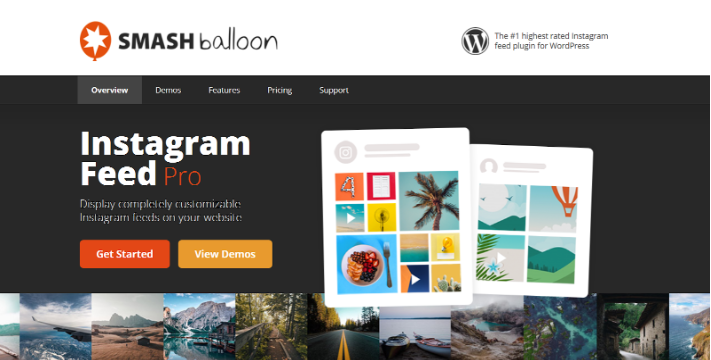
Plus, it comes with a number of other cool features that you can’t get when you embed your Instagram feed manually.
Let’s get started.
Once you’ve downloaded and activated the Instagram Feed Pro plugin, the first step is to connect your Instagram account to the plugin. To do that, open your WordPress Admin Dashboard and go to Instagram Feed > Settings.
Then, click Connect an Instagram Account to start the connection process.

You’ll be asked whether this is a personal or business account. Personal accounts let you display only your account feed, while Business ones let you show a wider variety of feeds. Show feeds filtered by hashtags, comments, photo tags, and more. The option you choose will depend on what kind of Instagram account you have.
When you’ve picked the account type, click Connect, and confirm your selection by clicking Connect Accounts. It’ll take a few moments to complete the connection.
Note: The other options on the page are to be used only if you’re connecting your account manually through the Instagram API (application programming interface.) If you’ve connected it as described above, you can ignore these options.
Once your connection is complete and confirmed, you can move on to the next step.
From the main plugin settings page, click the Customize tab to display the options.
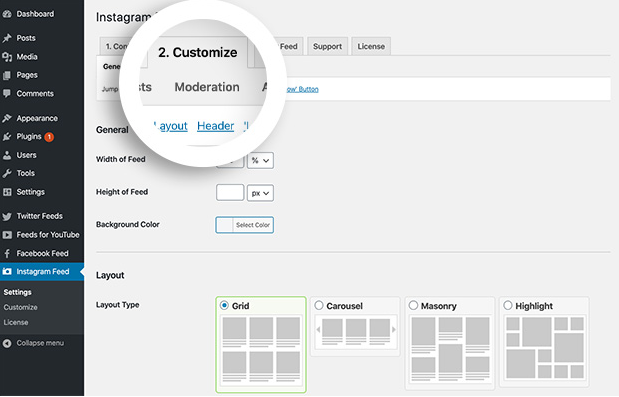
You can change the settings for your feed’s:
The last three customization options, “Header,” “‘Load More’ Button,” and “‘Follow’ Button” enable you to display or hide these options in the feed. Depending on how big your feed display is, you may choose to hide these, but we recommend leaving at least the Follow button enabled so your audience can follow you directly on Instagram.
If you’d like to dive deeper into the plugin settings, click any of the other settings tabs at the top of the page, but they can be left as-is for now. Continue to the next step to learn how to embed the feed on your WordPress site.
Now that you’ve set up your Instagram feed, it’s time to learn how to embed it on your site.
Create a new page in WordPress (Pages > Add New) or edit an existing one.
In the block editor, click the Plus (+) icon to add a new content block.
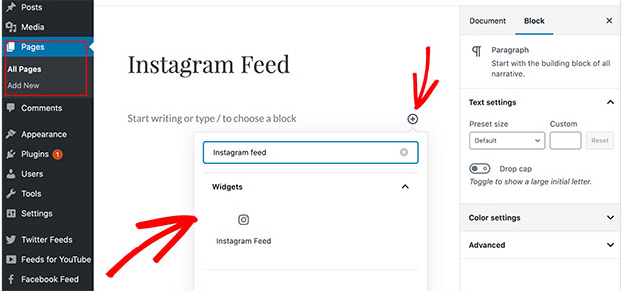
In the search box, type “Instagram” to bring up the Instagram Feed block and click it to add it to your page.
Your Instagram feed will then appear on the page automatically.

If you’re happy with the way it looks, click Publish or Update to make it live on your website, and you’re all set.
The Smash Balloon plugin also comes with an Instagram Feeds widget that you can use in any widget-ready area of your WordPress site. To add the Instagram Feeds widget to your site, navigate to Appearance > Widgets from the WordPress admin area.
Drag the Instagram Feed widget from the left panel to your chosen widget area (sidebar, footer, etc.) Here, we’re adding it to the footer widget area.
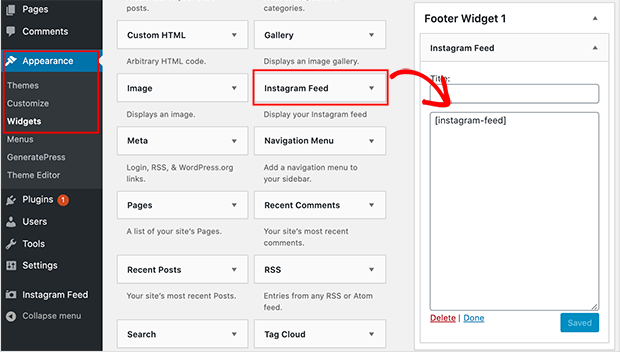
Click Save to publish it in that spot, and you’re done! Open your website and navigate to the area where you put the widget to find your Instagram feed.
You’ve now embedded your Instagram feed on your website with a WordPress plugin. Congratulations!
There you are, an easy way to embed Instagram on your WordPress website, either with a plugin that’ll display a feed or by copying individual content directly.
We hope you enjoyed this article and learned how to embed your Instagram feed on WordPress. Now you’ll be able to engage your visitors with highly relevant content, increase your Instagram follower count, and grow your business.

